Music Units
Music Windows
Music are saved in files.
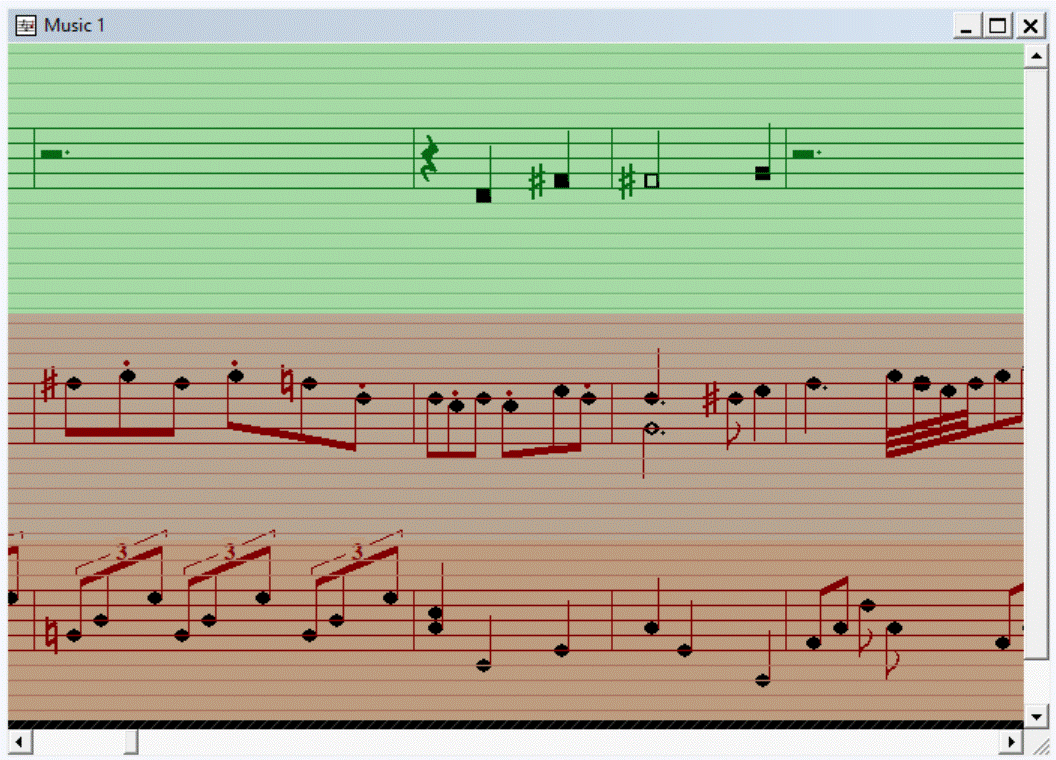
This is an example of a Music Window, it containes 3 Staves.
Actions
- Create a new Music Window: Choose from the menu: File | New | Music...
- Open a Music Unit from a File: Choose from the menu: File | Open | Music... and Choose one or more files.
- Save the Music Unit into a File: Choose from the menu: File | Save to save into the same file, or choose File | Save As... and give in a new or existing file.
- Revert the Music Unit to Music Unit of a file: Choose from the menu: File | Revert.
- Play the Music Unit: : Choose from the menu: File | Play or play at maximal volume by choosing File | Play Maximal
- Duplicate: Choose from the menu: File | Duplicate
- Change the Wave Properties of Wave Generated by the Music Unit: Choose from the menu: File | Properties... and change the Wave Properties.
Music Symbols
- Notes including flags, dots and Accidentals
- Rests
- Clefs
- Accidentals
- Bar Symbols
You can navigate through Symbols:
- one position left or right.
- one position up or down (only with Notes).
- one staff up or down (only with Notes).
- first or last Symbol of the Staff.
With Notes you can...
- Add Notes to Staves.
- Delete Notes from Staves.
- Change the Note Group of a Note.
- Change the Length of Notes, including changing the count of dots up to three.
- Change the articulation (staccatissimo, staccato, portato and legato) of Notes.
- Change one or more Notes into a Tuplet (Twins, Triplets, Quadruplets and Quintuplets).
- Change one or more Notes into a Rest.
- Move Notes horizontally and vertically.
- Add Rests to Staves.
- Delete Rests from Staves.
- Change the Length of Rests, including changing the count of dots up to three.
- Change a Rest into a Note.
- Move Rests horizontally.
- Add Clefs to Staves.
- Delete Clefs (except the first clef of a Music Part) from Staves.
- Move Clefs (except the first clef of a Music Part) horizontally.
- Changed Clefs, with no effect on music, the Notes after the Clef will move vertically.
- Correct Clefs, with effect on music, the Notes after the Clef will not move vertically.
- Add a Accidental to a Note.
- Change a Accidental of a Note.
- Delete a Accidental from a Note.
- Add a Accidental to a Clef.
- Change a Accidental of a Clef.
- Delete a Accidental from a Clef.
- Change the Count (upper value).
- Change the Length (lower value).
- Create, change or remove the anacrusis.