Zooming and Scrolling
Splitter
This window has the splitter at the left edge and is unzoomed:
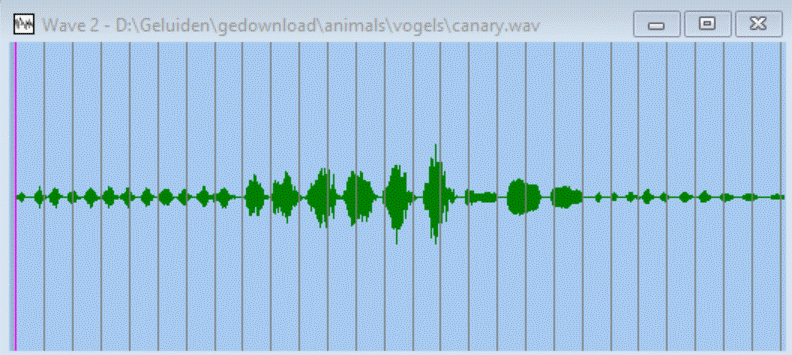
You can simply drag the splitter left and right.
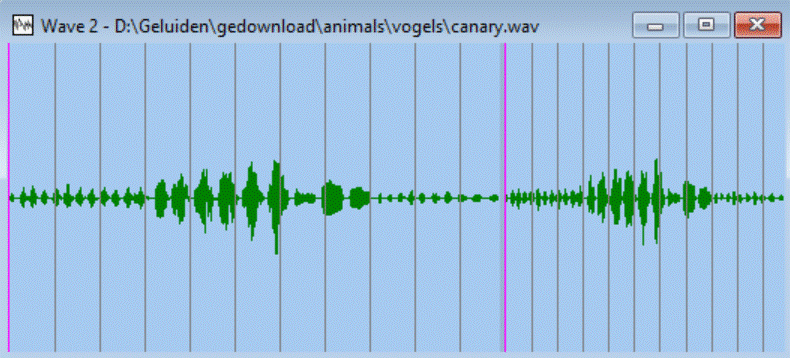
This window has the splitter in the middle, both views are unzoomed:
Dialogbox Select and Zoom
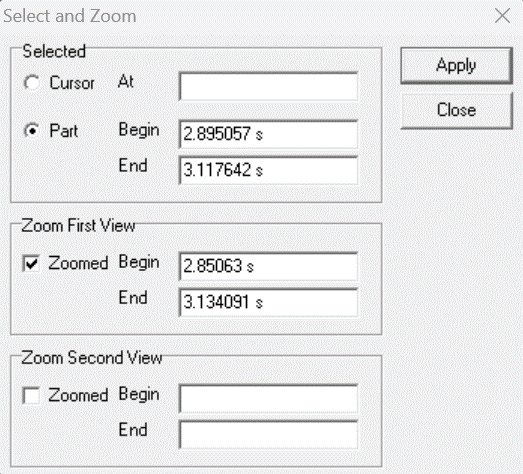
You can show the dialogbox via the Menu: View | Dialogbox Select Wave...
Change the contents of the dialogbox and press [Apply].
Zooming In
- You change into the zoom-mode (menu: View | Zoom in) and then select a part of the wave in a view, that part of the wave is zoomed in when releasing the left mouse button.
- You hold the right mouse button in above the wave and move the mouse down to zoom in.
- Specify the places of the wave in a dialogbox in the field Begin and End under group Zoom ... View and press [Apply].
Scrolling
Once the wave in the view is zoomed in, you can scroll the wave in the view with the horizontal scrollbar.
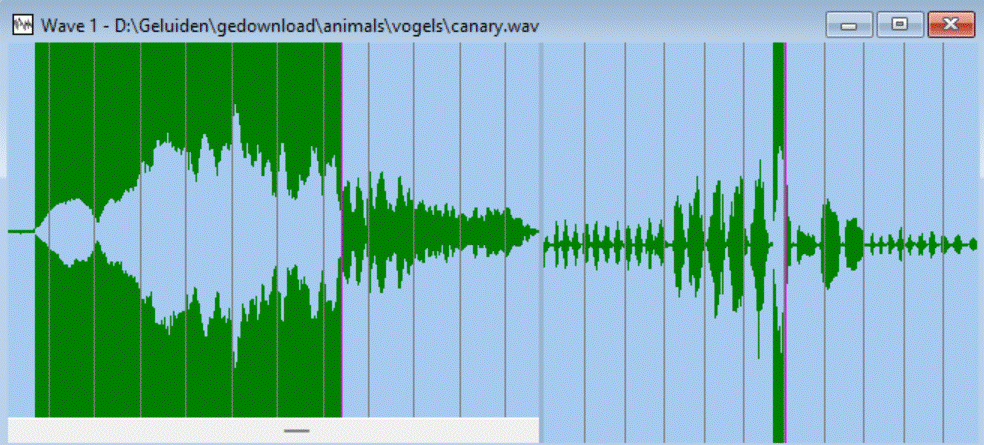
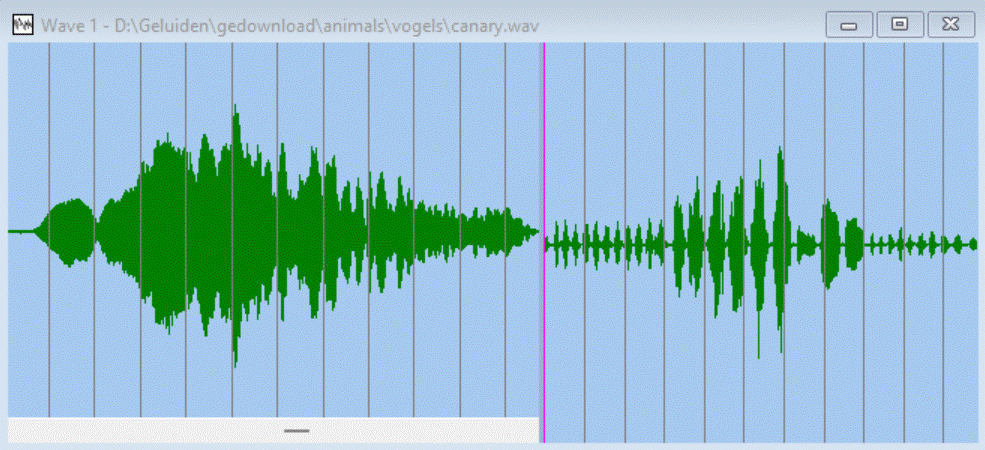
This window has the splitter in the middle, the left view is zoomed, the right view not:
Zooming Out
- You change into the no-zoom-mode (menu: View | No Zoom) and then click in the view.
- You hold the right mouse button in above the wave and move the mouse up to zoom out.
- remove a check in a dialogbox at Zoomed under group Zoom ... View and press [Apply]..